


S100 Product Overview
Touch Zones
mm Interface
RGB LEDs
Characters of Text per Line
Communication Protocols

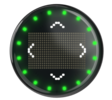
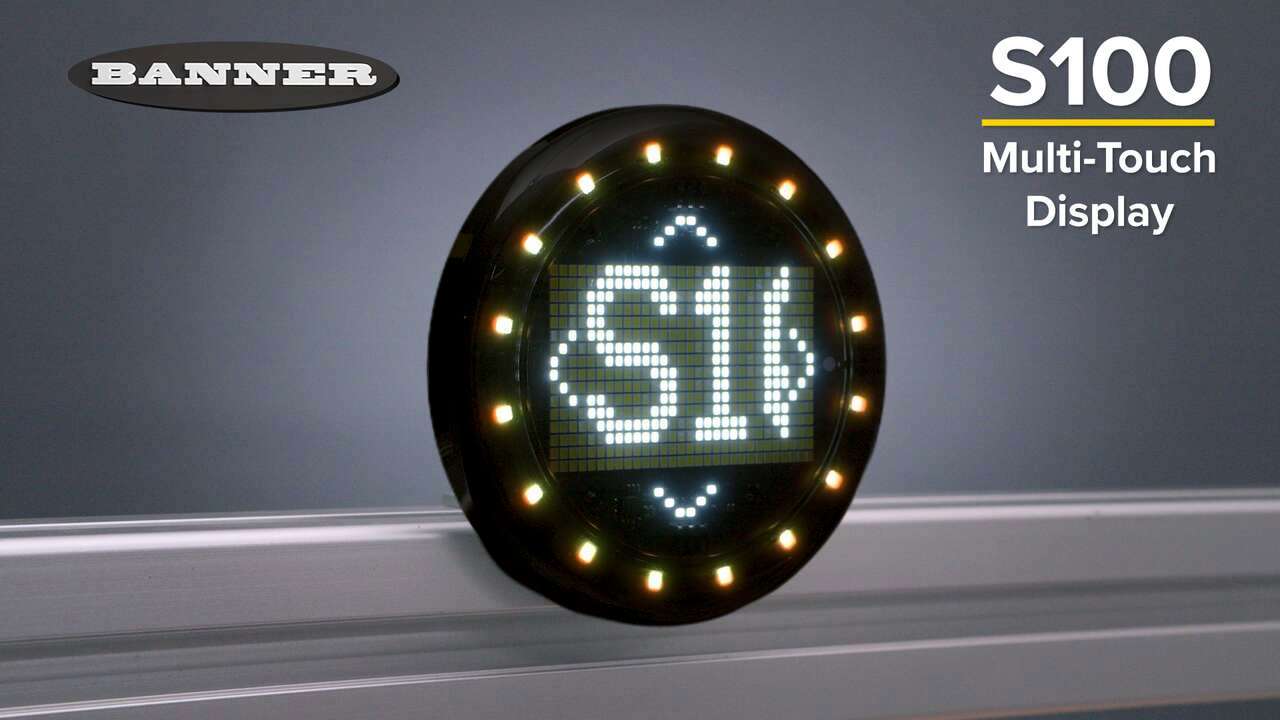
The S100 Multi-Touch Display is a low-profile interface for routine point-of-use operator interaction. Combining up to five touch zones with haptic feedback, audible alerts, an alphanumeric display, and 16 RGB LEDs in a 100 mm footprint, the S100 gives machine builders and system integrators a compact, configurable way to build an interface that fits the task without the overhead of a traditional HMI.
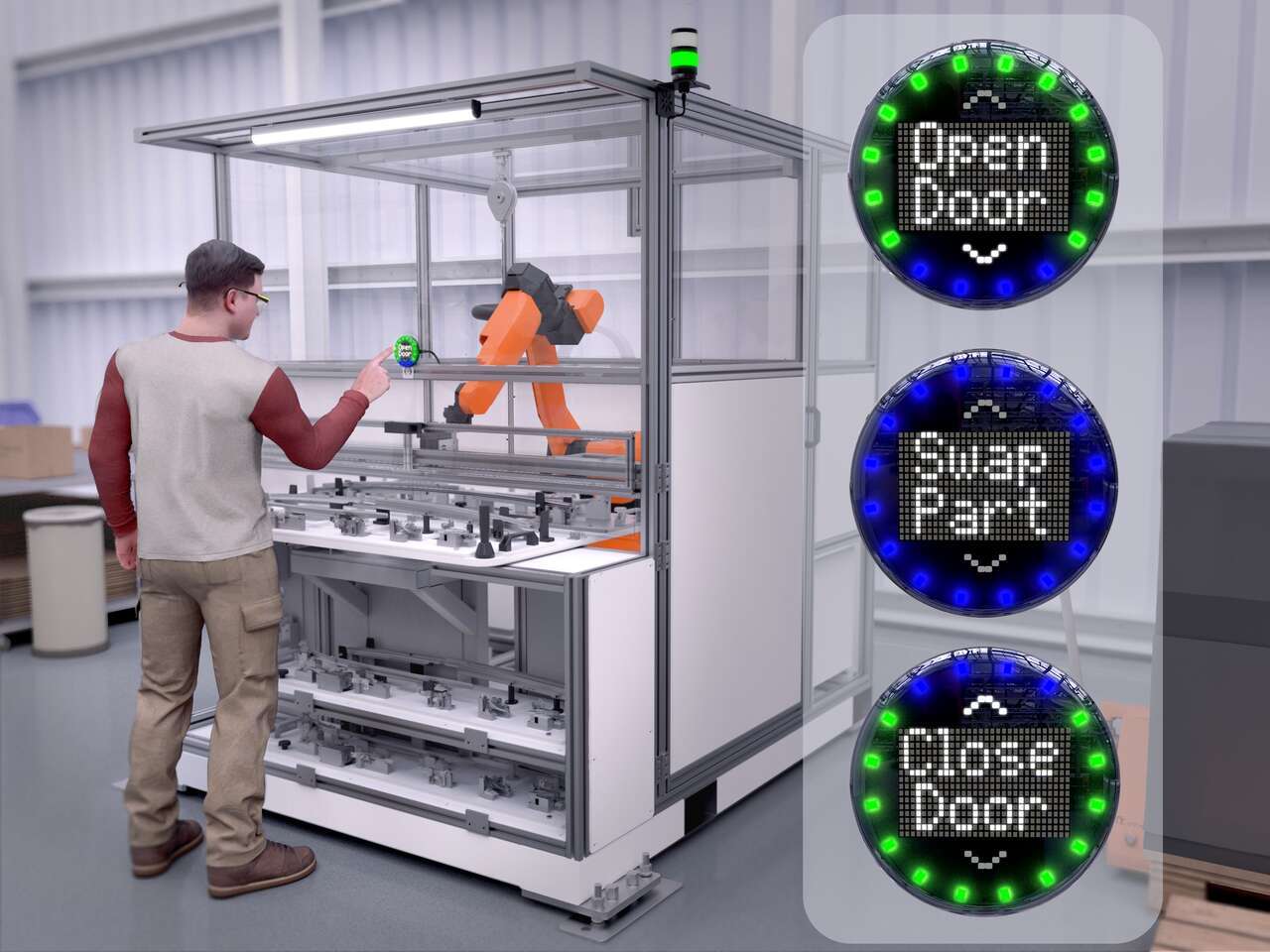
Up to five configurable touch zones provide point-of-use operator input. Configure each zone or combine them to create one large zone for routine actions such as confirming a step, advancing through a sequence, resetting a condition, selecting a task, responding to an application-specific prompt, and more.
Configure only the touch zones an application needs, and enable haptic feedback to give operators immediate tactile confirmation of operator input.
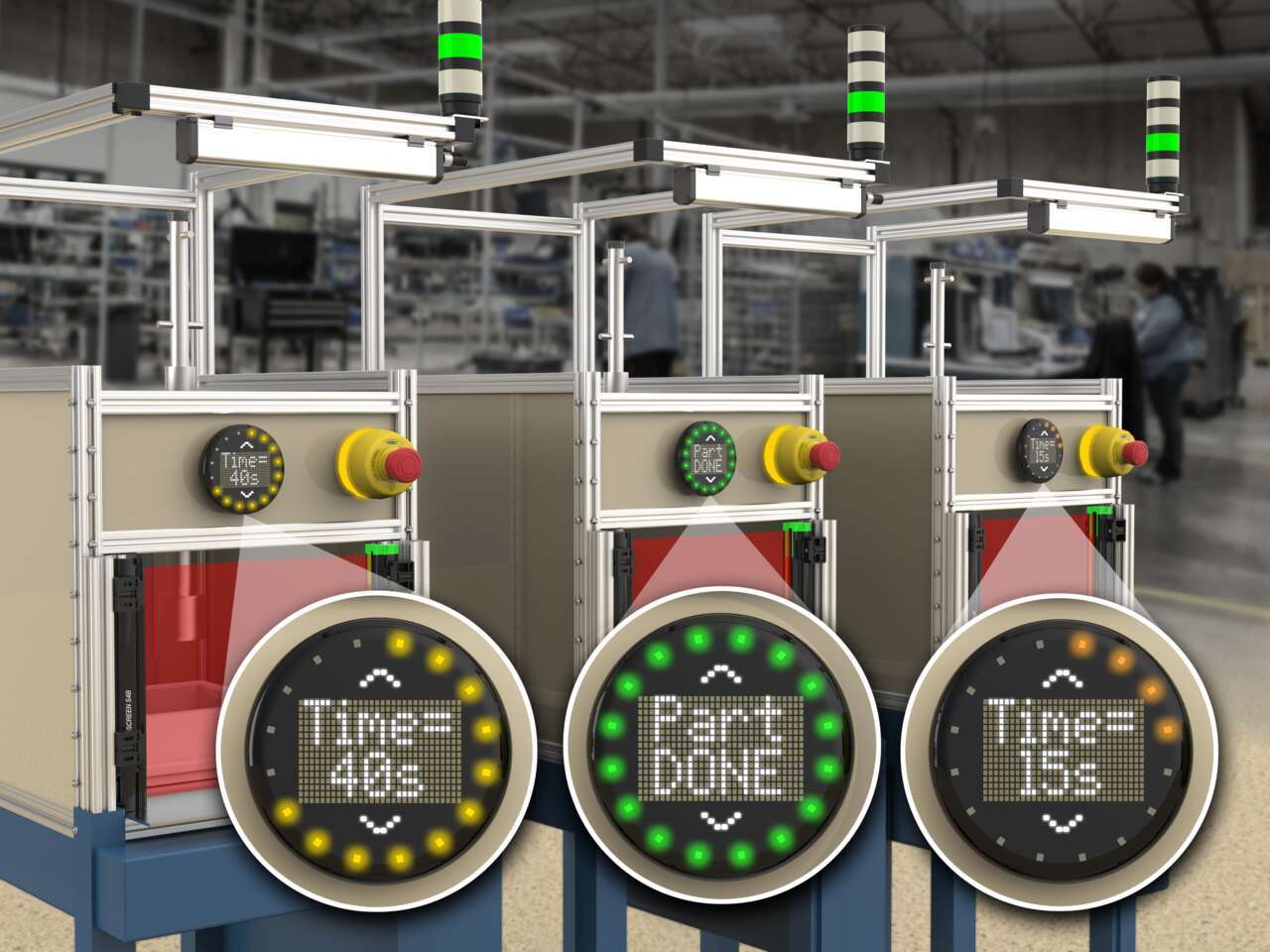
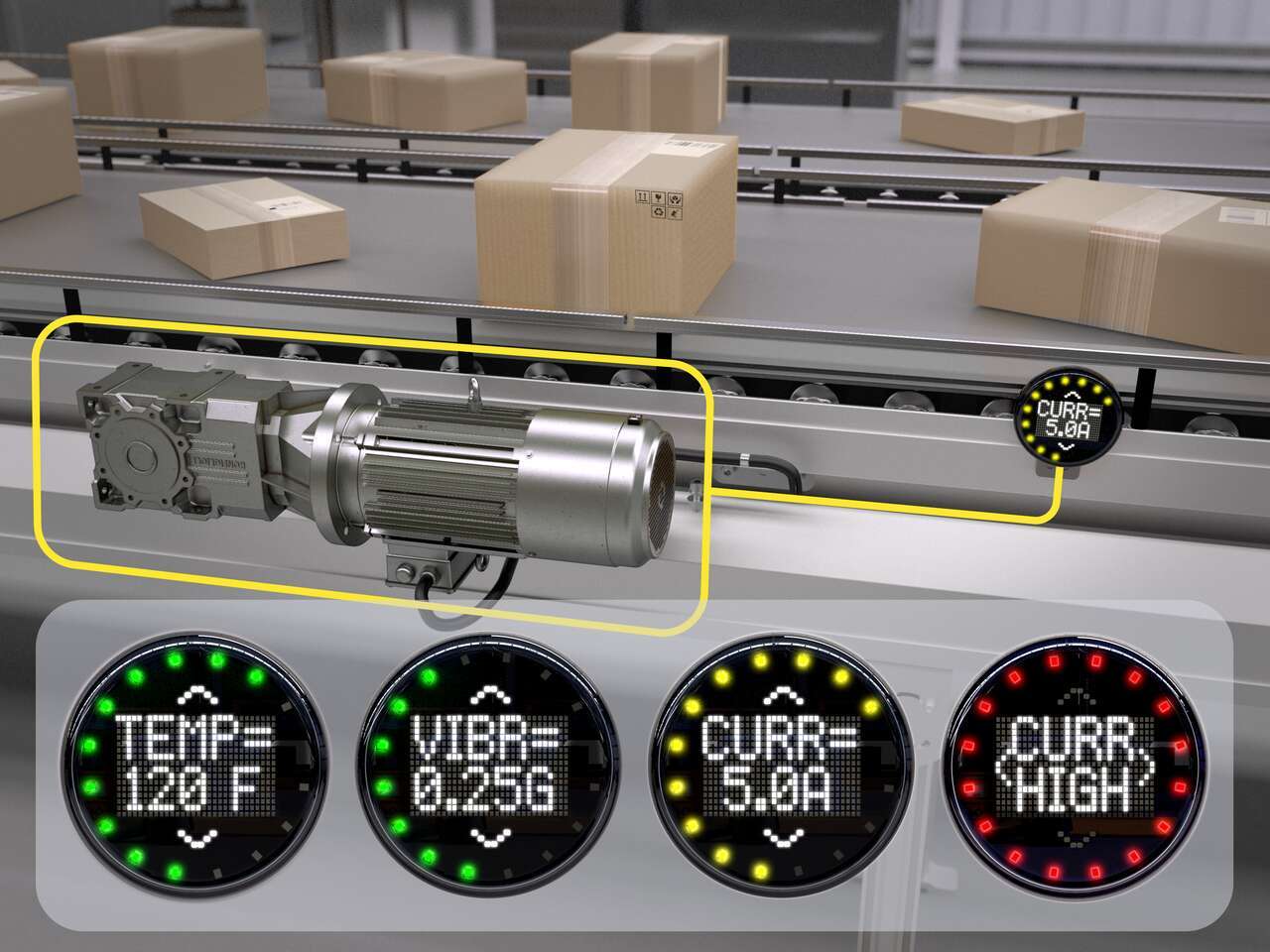
A configurable alphanumeric display brings instruction, machine status, counts, timers, and measurement values directly to the point of use.
Configure display text as two stacked lines for paired labels and values, or use one larger line for shorter text that needs greater visibility. Use scrolling text for longer prompts or status lines, and adjust brightness, orientation, and alignment settings to tailor the display to the application.
16 RGB LEDs provide visual indication of machine state, task progress, warnings, process thresholds, and other operator-facing conditions. Configure colors and animations to make status readable at a glance, and add audible alerts as a local cue when a state changes, a step is complete, or operator action is needed.
Three S100 models give machine builders and system integrators the ability to create compact, task-specific operator interfaces across a wide range of machine designs and control architectures.
IO-Link and Modbus models integrate with PLC logic, allowing the S100 to be updated dynamically to follow machine sequences, support sensor or parameter selection, display changing values, and more.
The discrete I/O model is configured in Pro Editor Software, where display text, LED colors, touch response, and more are set once and saved as a device configuration that can then be applied across multiple units for a consistent interface setup and quick deployment across repeated applications.
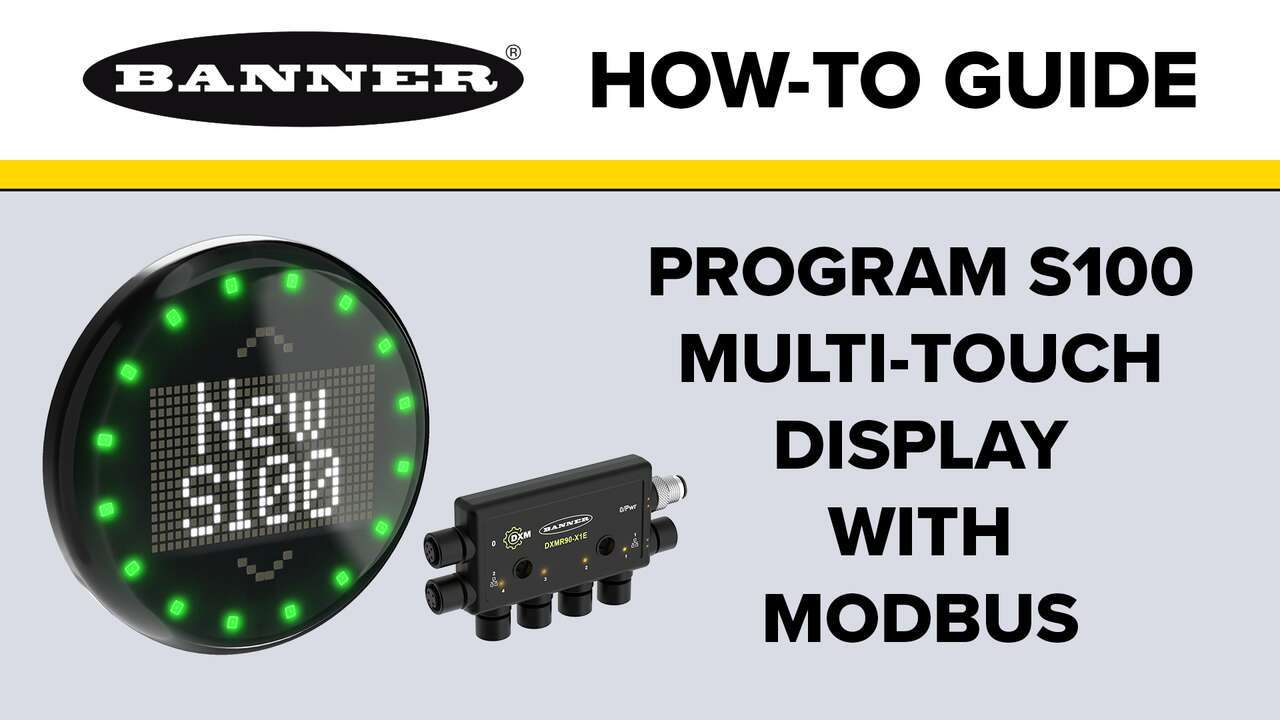
A demonstration on how to program the S100 Multi-Touch with Modbus
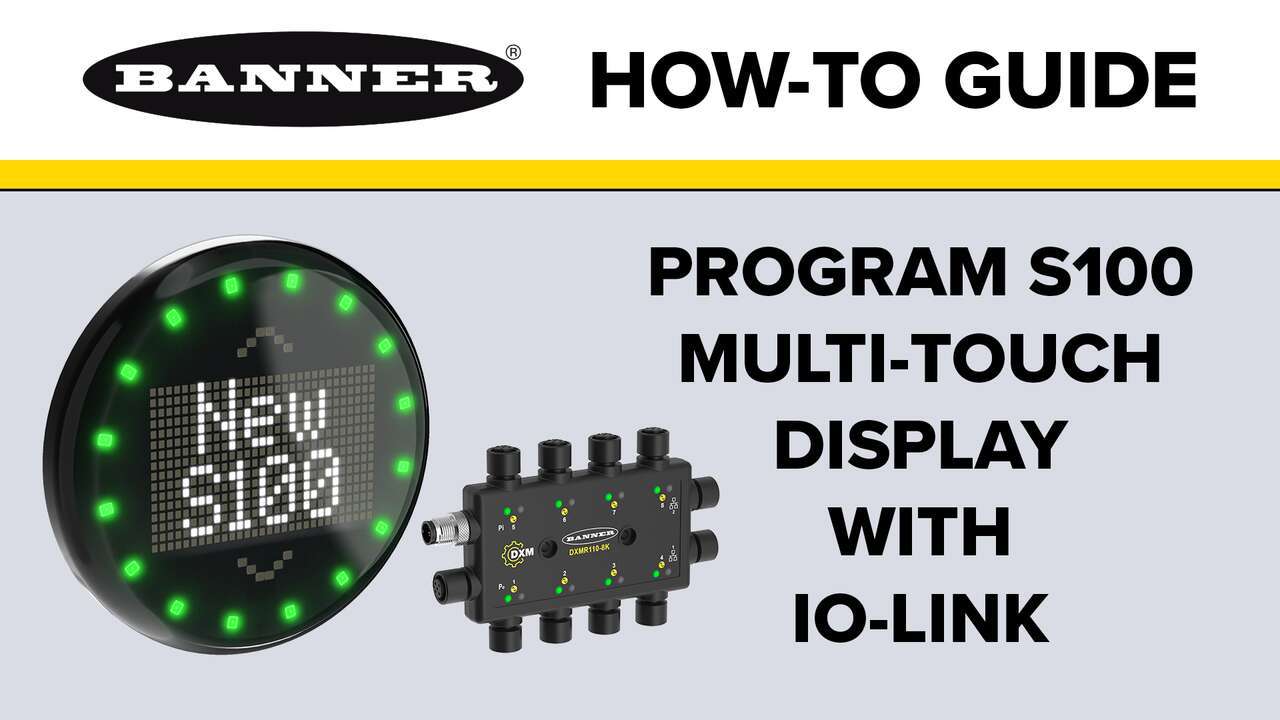
A demonstration on how to program the S100 Multi-Touch with IO-Link
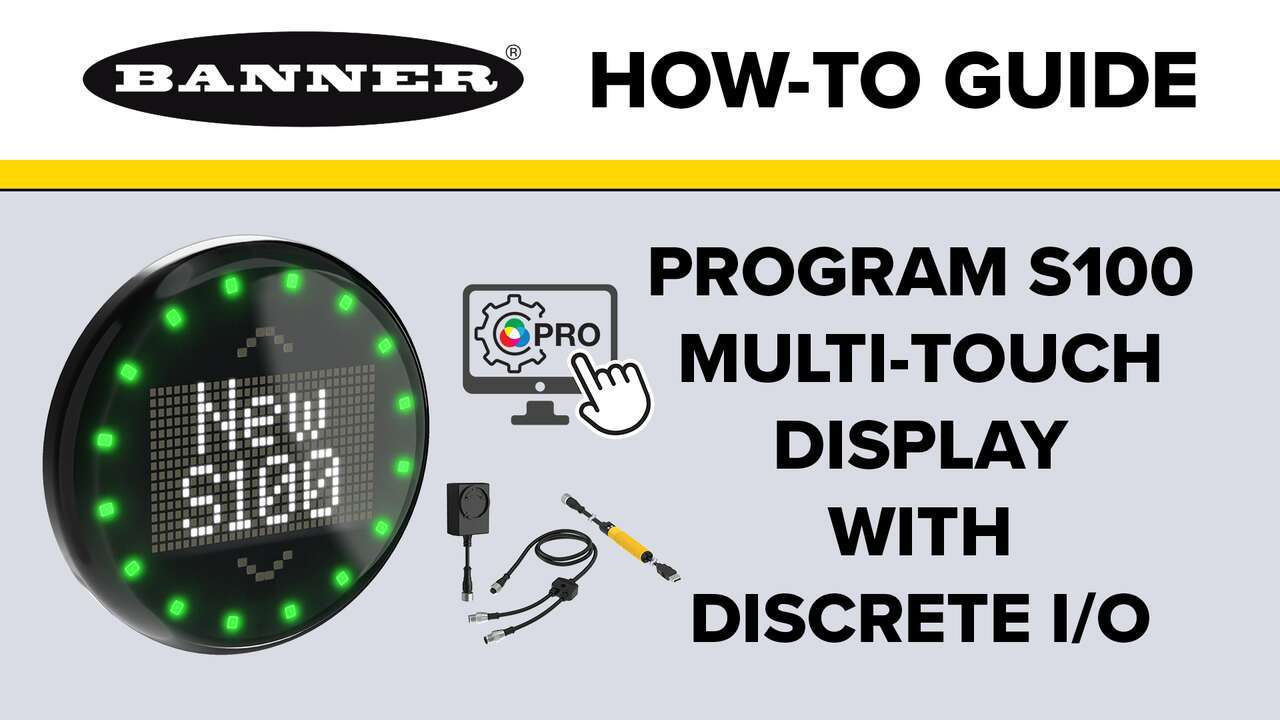
A demonstration on how to program the S100 Multi-Touch with Discrete I/O
Our application engineers are here to help with expert guidance and support. Send us your inquiry, and we’ll get back to you as soon as possible. We’re here to make sure you get the answers you need.